Settings, backups, updates and channels
Where your data lives, three saved settings, automatic backups and a restore guarded by a preview, a signed updater that explains the portable edition instead of merely blocking it — and the company's news and product channels.
The screen and its six sections
The settings screen is titled «Settings» with the subtitle «where the data lives and what is saved of it», and it has six sections: Data location, Preferences, Automatic backups in the app folder, Backup and restore, App updates, and Developer tools.
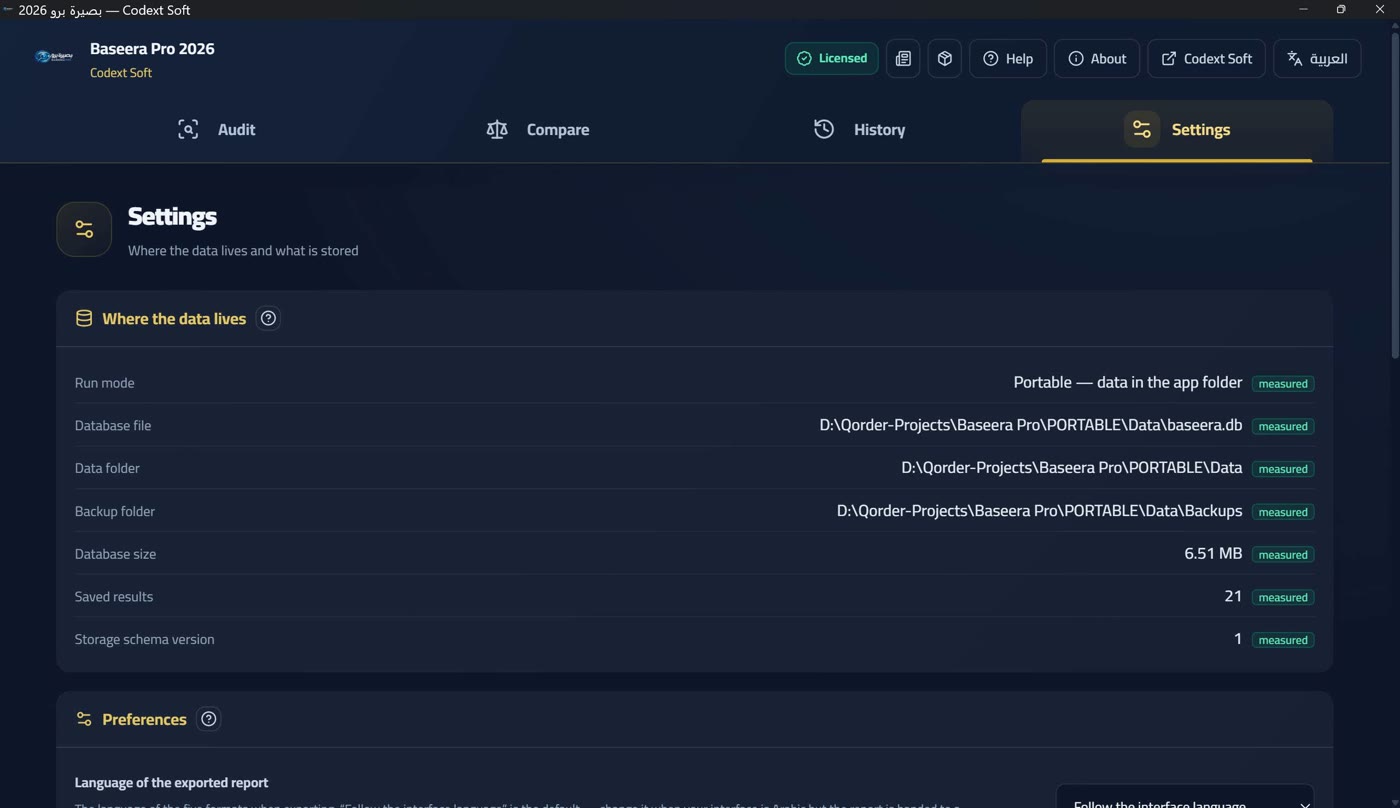
The sixth section is not carried by the production package: it appears only when the app is run from source, and documenting it here would promise something you will never see in your copy — so its existence is merely noted.
Everything that is saved is governed by a declared allow-list of keys (3 keys): storage accepts only known keys, so no setting is hidden and none is swallowed. Saving is honestly partial if some of it fails: the keys that could not be saved are named instead of a generic success message.
Data location and run mode
This section shows the run mode — «portable — data in the app folder» (a flag file beside the executable and data in a Data folder next to it) or «installed — data in the Windows data folder» — then: the database file, the data folder, the backups folder, the database size, the saved results count, and the storage-schema version. Every path has a copy button.
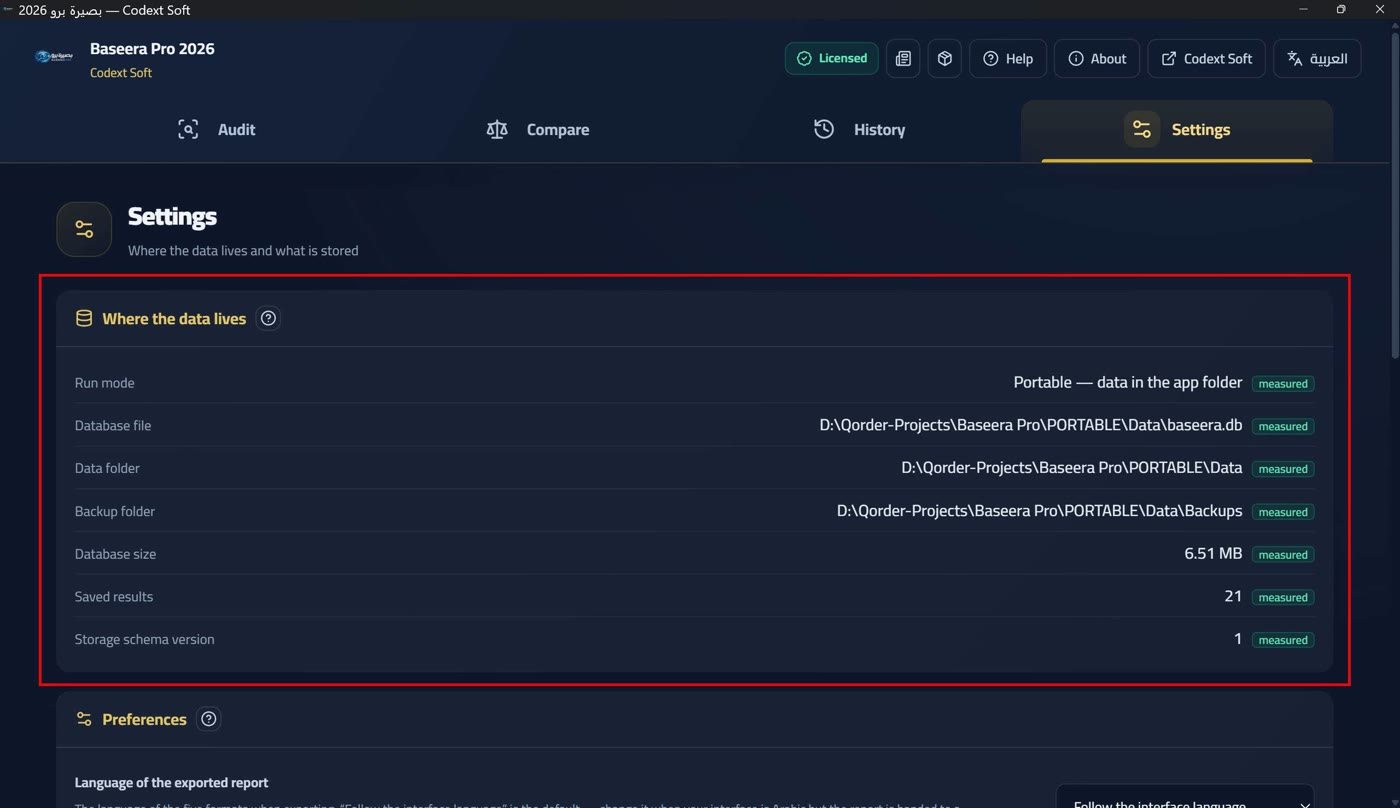
Why the run mode matters to you: the portable edition carries its data in a Data folder beside it, so it travels on an external drive and never mixes with the data of an installed edition on the same machine. The installed edition writes into the Windows data folder. The mode also decides whether the app updates itself from within or its file is replaced manually (Downloading and installing — and the portable edition).
Here too the licence-state mirror is shown as read by the core — it is re-read at every boot, so the interface never relies on a stale copy of it (Two tiers and a badge — no time trial).
Preferences: three saved settings
Three saved settings, no more: the exported report's language («follow the interface language» / «Arabic» / «English» — the detail and its effect on export live in Export in five formats and its locks), the number of backups kept, and the maximum crawl pages.
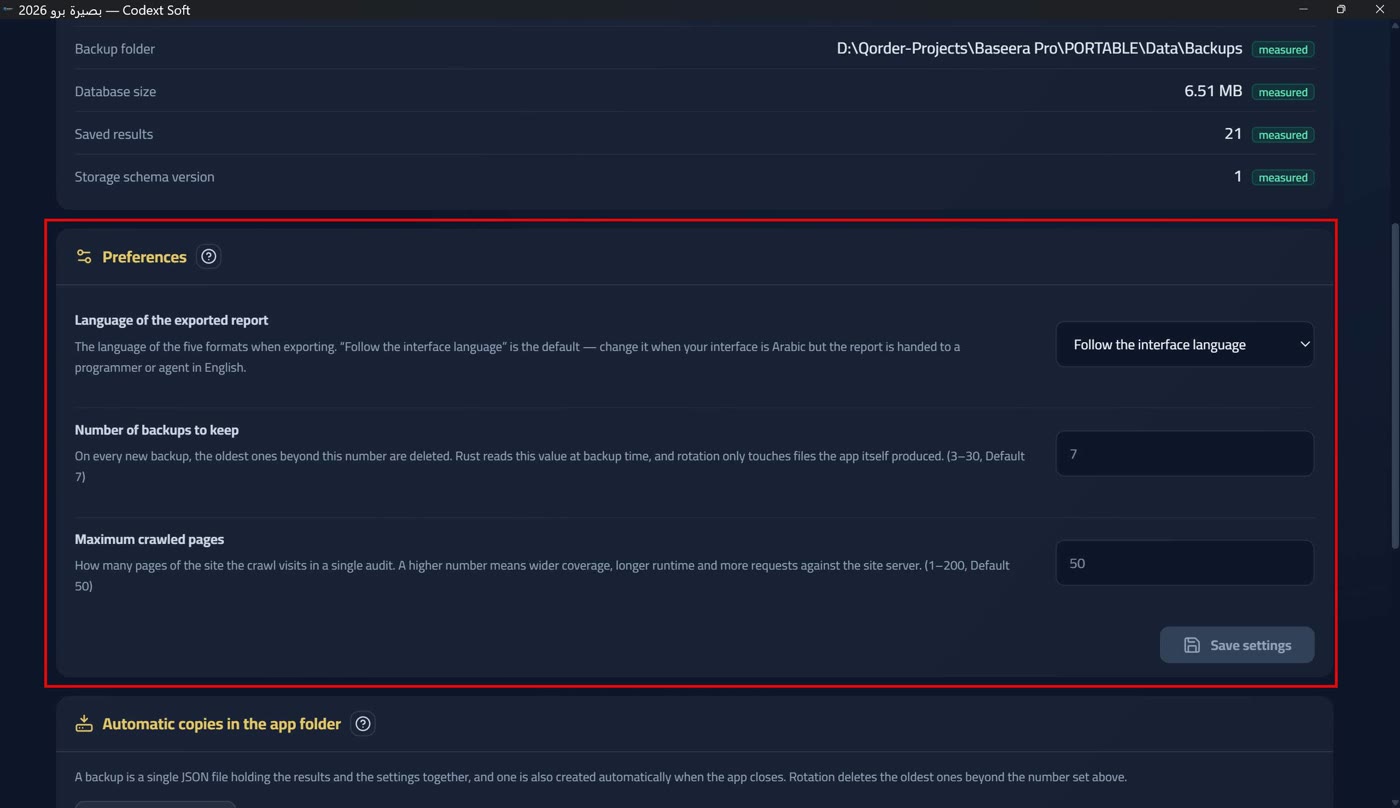
The number of backups kept defaults to 7 and accepts 3 to 30: «With every new backup the oldest ones beyond this count are deleted. Rust reads the number at backup time, and rotation only ever touches files the app itself generated» — so rotation never erases a file you placed in the folder by hand.
The maximum crawl pages defaults to 50 in the licensed tier and accepts up to 200: «a higher number means wider coverage, a longer run, and more requests on the site's server» (While auditing: the polite crawl and cancelling it). In the demo tier the ceiling is 25 and cannot be raised — and if you type a higher number it is clamped down, never silently.
Saving is explicit in both outcomes: «settings saved» or «some settings could not be saved» naming what failed, and if nothing changed then «no change to save». An invalid value is rejected with «invalid value — leave the field empty to use the default» instead of being swallowed silently. Each field has a «default» button beside it.
Automatic backups in the app folder
«The backup is a single JSON file holding results and settings together, and it is also created automatically when the app closes» (Closing the app and the backup) — «and rotation deletes the oldest files beyond the count set in preferences above».
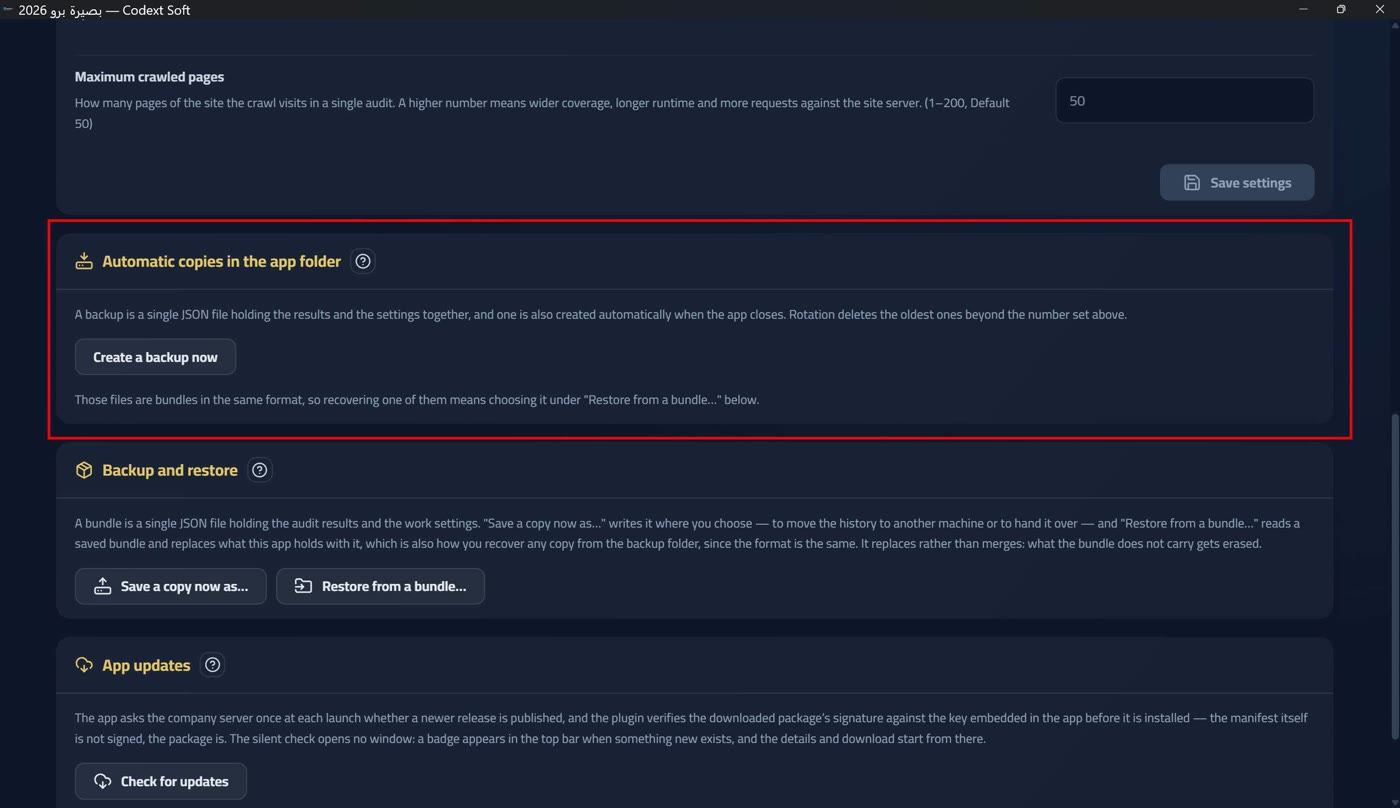
The «back up now» button copies immediately and announces «backup created». And if there is nothing to back up, no empty file is written to suggest something was saved: «nothing to back up — a database with no results and no settings».
Backup and restore behind a guarding preview
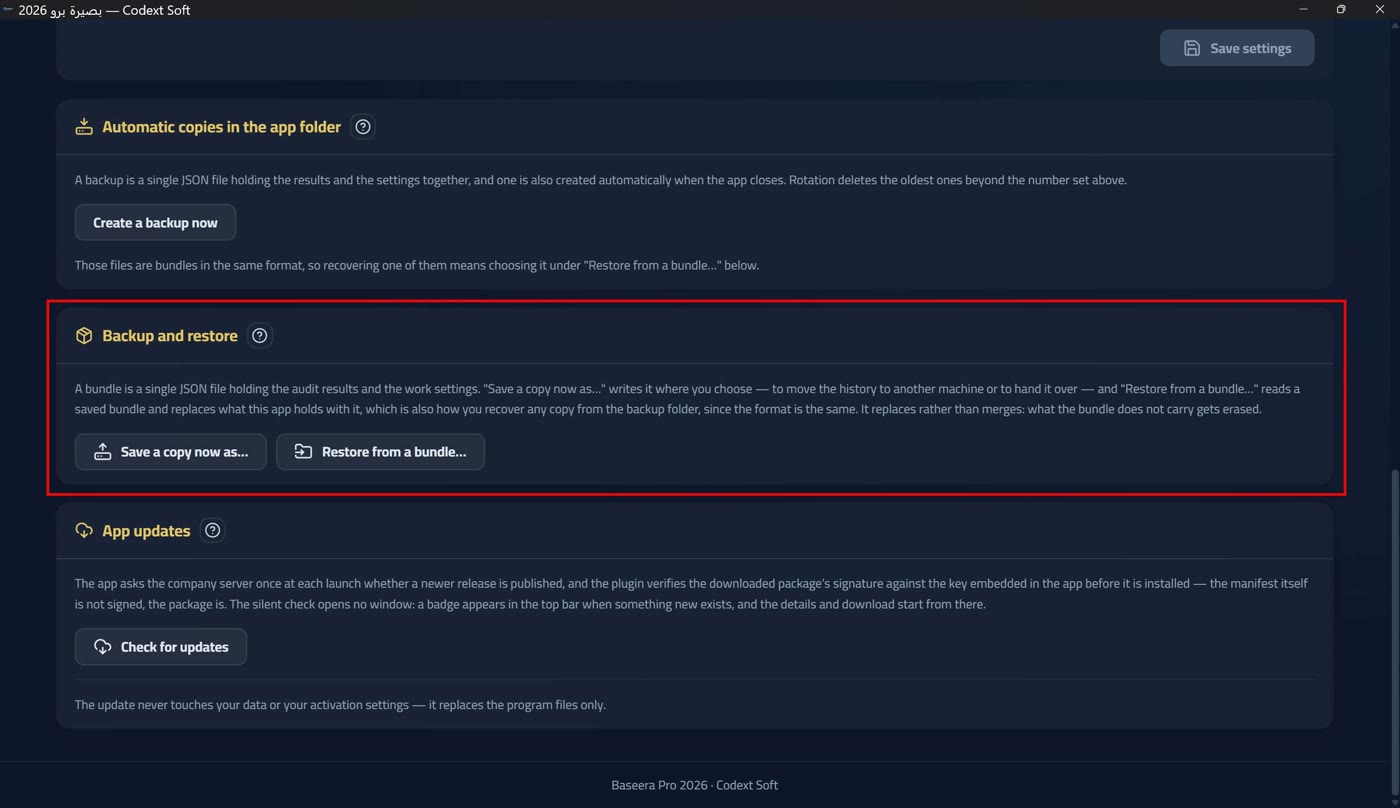
«The bundle is a single JSON file holding audit results and work settings. «Save a backup as…» builds it wherever you choose — to move the history to another machine or hand it over — and «restore a bundle…» reads a saved bundle and replaces what is in this app with it; it is the very same way to bring back any backup from the backups folder, because the format is one. And it is replacement, not merge: whatever is not in the bundle is erased».
The «before restore» preview is the guard: it shows how many results and how many settings the bundle holds, how many will be replaced here, the number of domains that will be erased (the real count in full, not an estimate), and a sample of five domains (newest first) with the newest and oldest items to be erased and the bundle's stamp. The text is explicit that the names are a sample: «The names below are a sample of your history's domains (newest first) as the app just read it — not the full list».
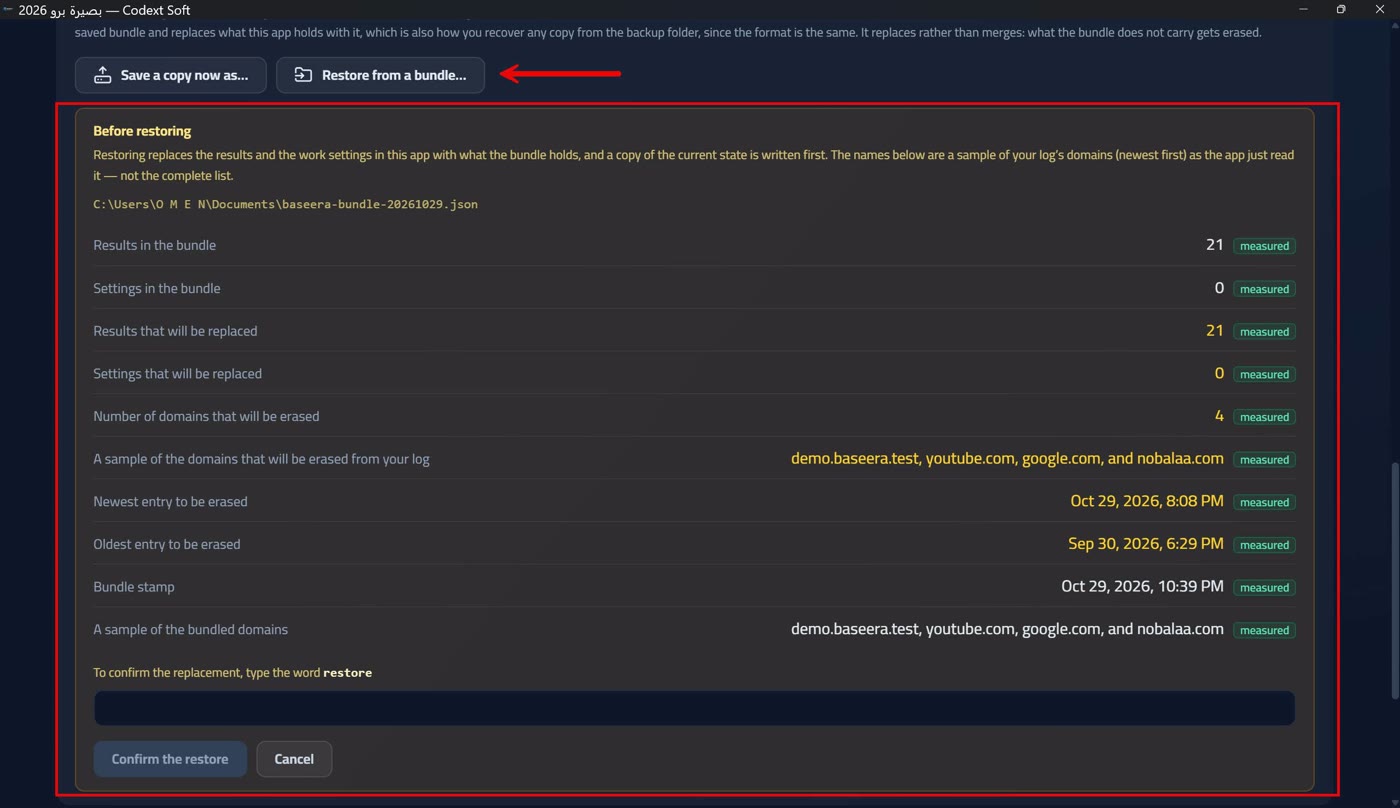
A copy of the current state is taken before the replacement — so if you regret it you can go back to that copy. And nothing runs until you type the confirmation word «استعادة» (restore in English) into the «to confirm the replacement, type the word» field.
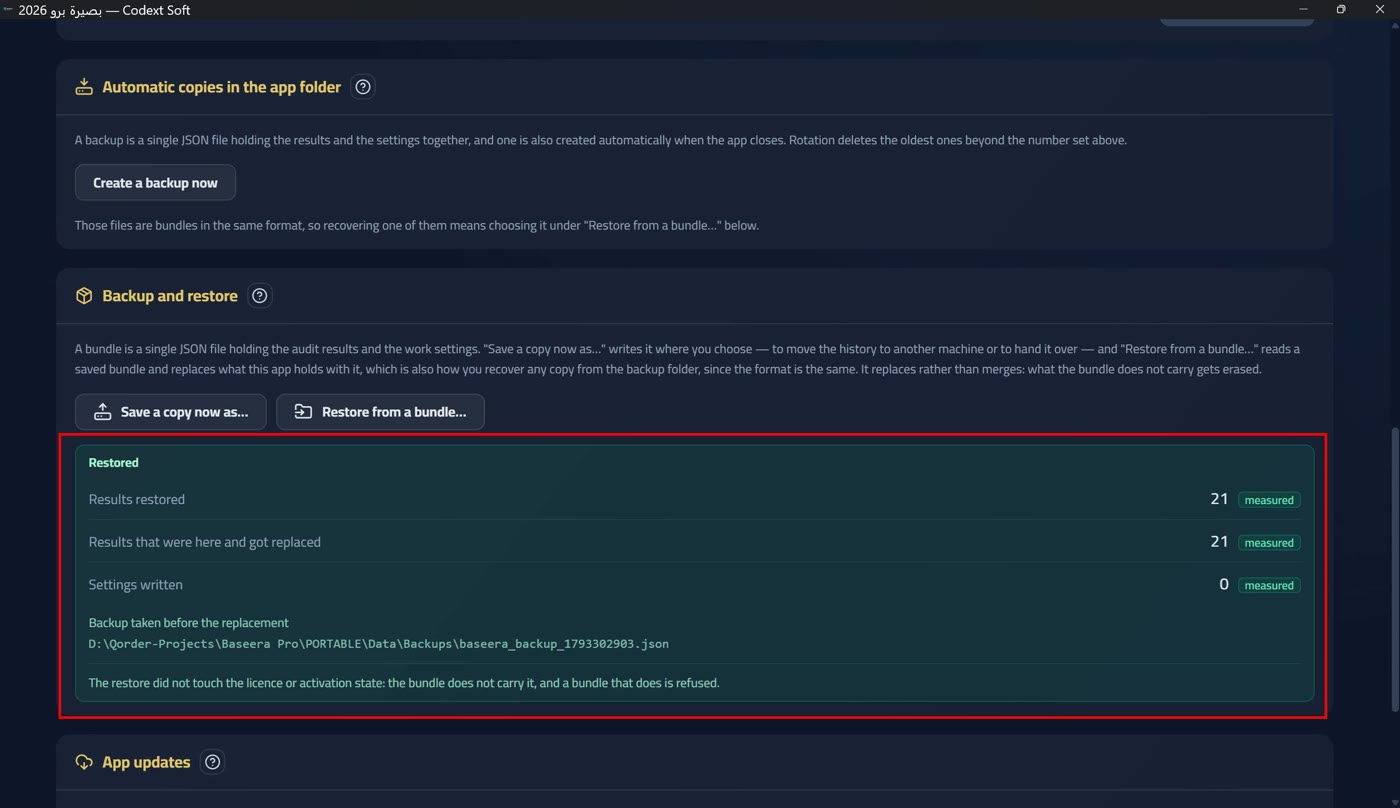
After the run a report of what happened appears: results restored, results replaced, settings, and the pre-replacement copy. And the security note is always stated: «The restore did not touch the licence or activation state: the bundle does not carry it, and the app rejects any bundle that does» — restoring a bundle from another machine does not transfer its licence, and your own licence is never erased by a restore.
Automatic updates: a silent check and a badge
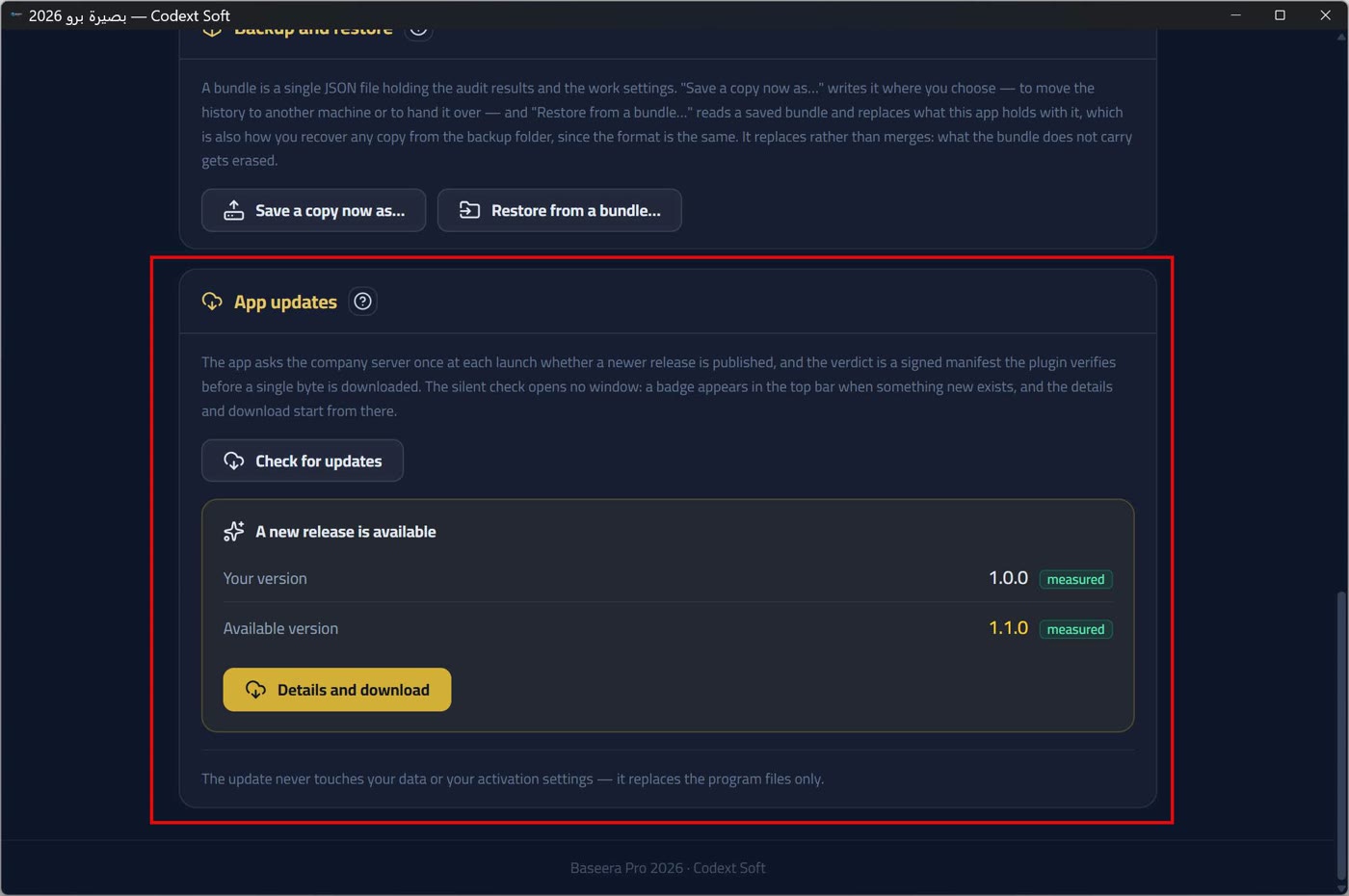
The check is silent at every boot: the app asks the company server once whether a newer version is published, and opens no window. The updater plugin verifies the signature of the downloaded package against the key embedded in the app before installing — the published manifest itself is unsigned; the package is what is signed. There is no back door: a package whose signature fails is never installed.
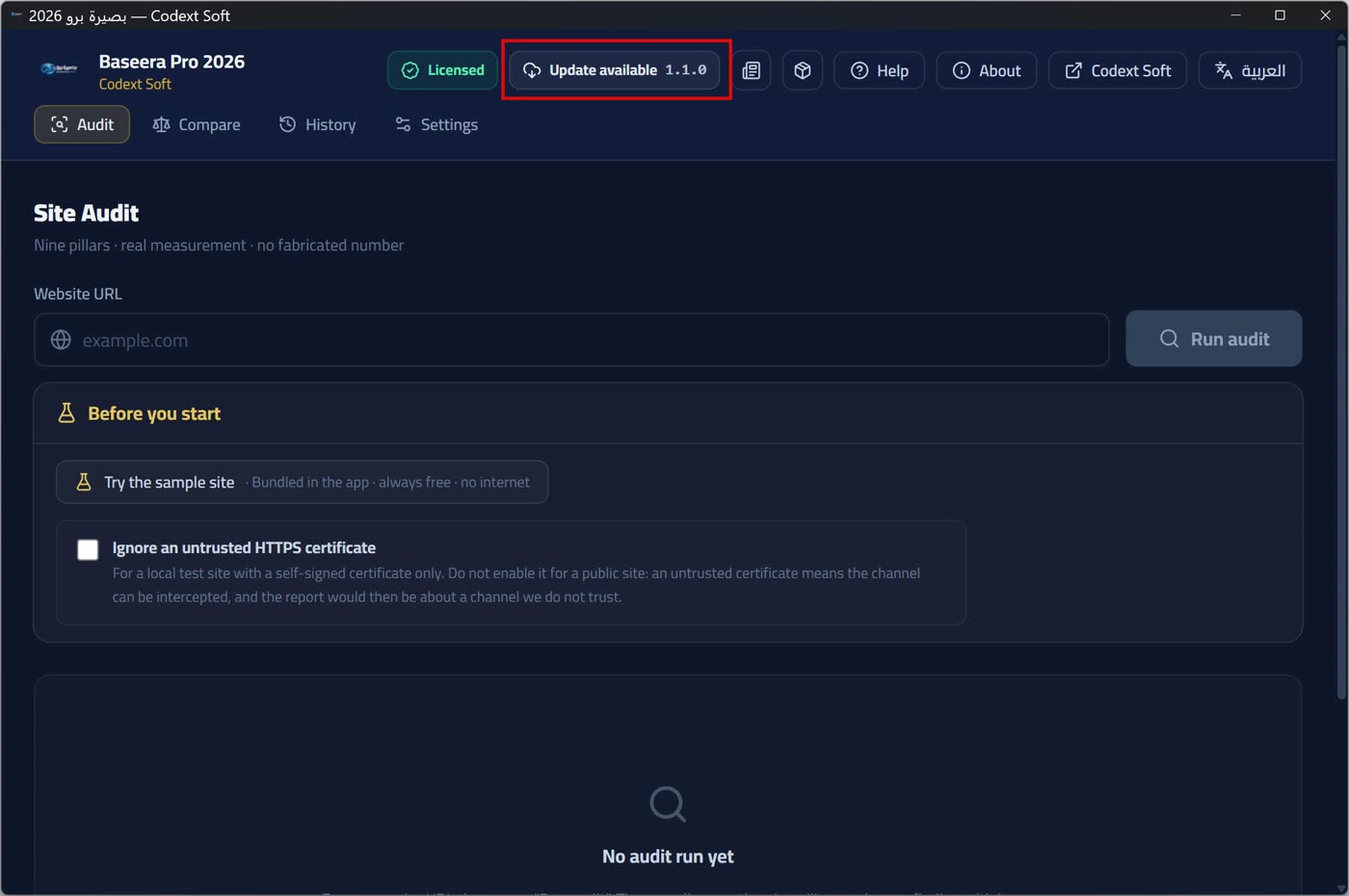
If something new exists, a badge appears in the top bar: «update available» (or «installation failed» if a previous install failed), and the update window opens from it.
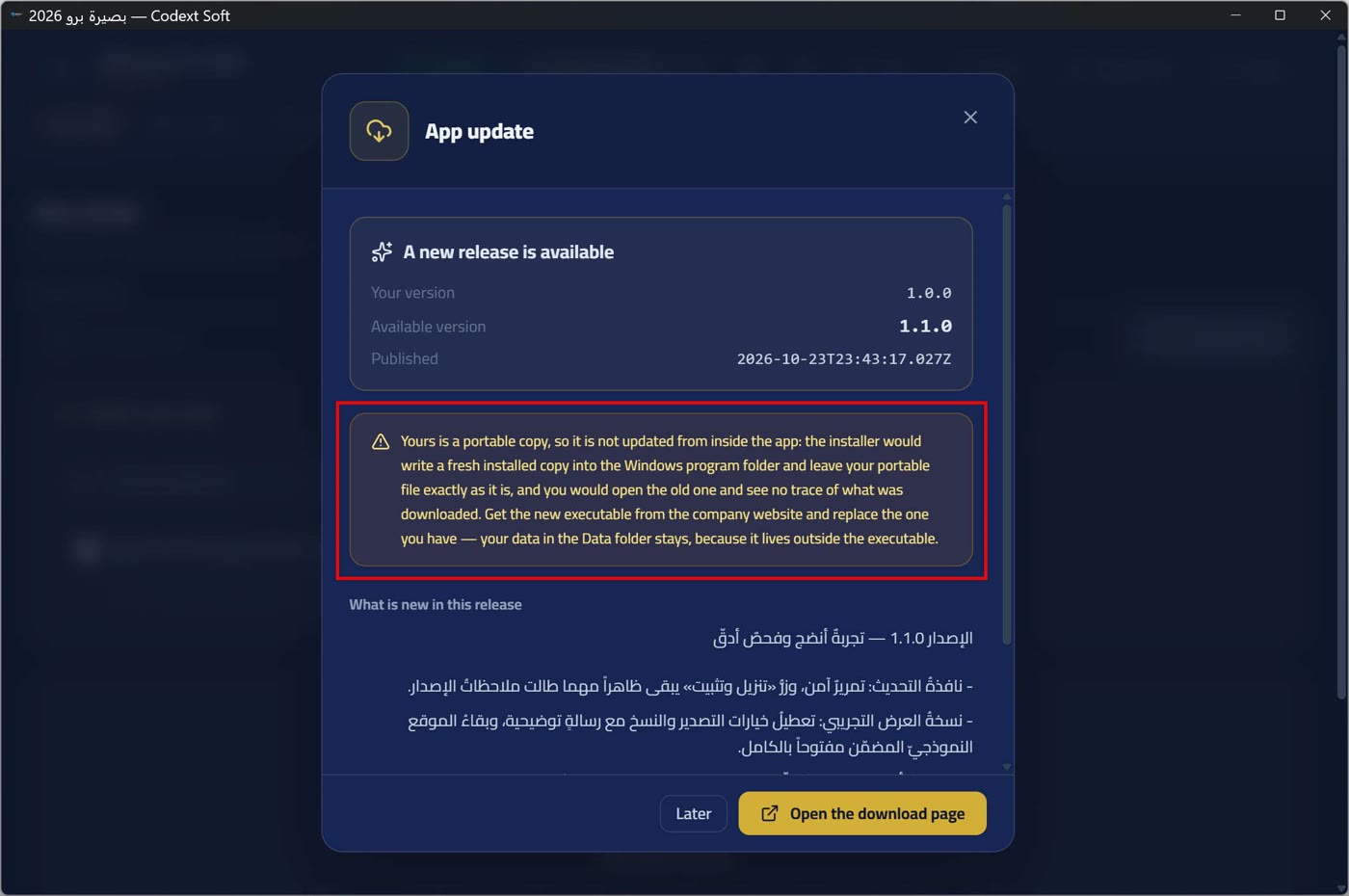
The update window shows: «your version», «available version», «release date», and a «what is new in this release» section — rendered as plain text, never HTML, so release notes execute no code — (and if the manifest carries none: «no description was published for this release in the manifest»), the reassurance «the update does not touch your data or your activation settings — only program files are replaced», and the two buttons «download and install» and «later».
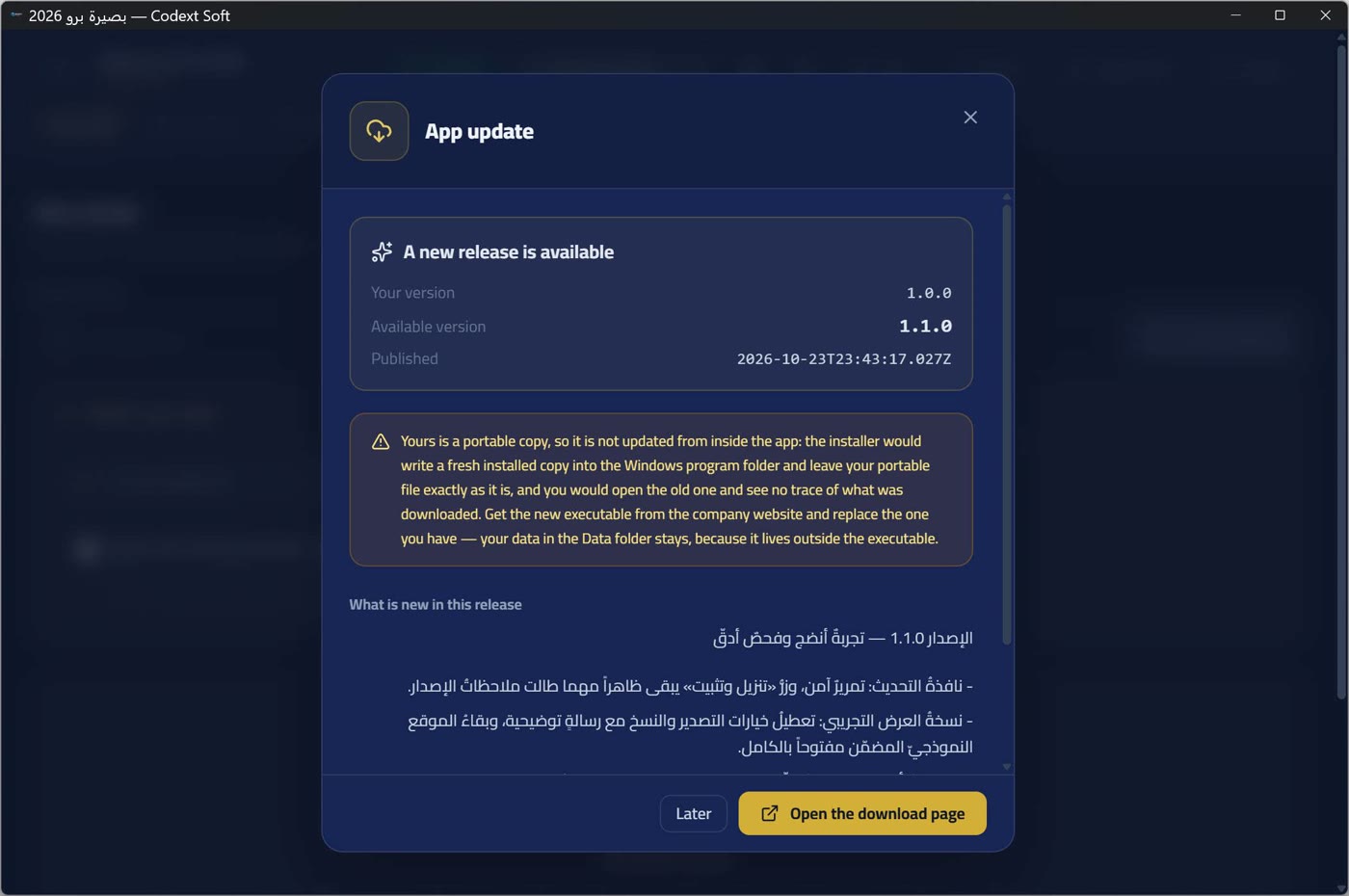
And «later» closes for this session only: the declined version is not remembered, so the badge returns at the next boot. This is deliberate — a stored refusal would mean a user forgot an important update forever.
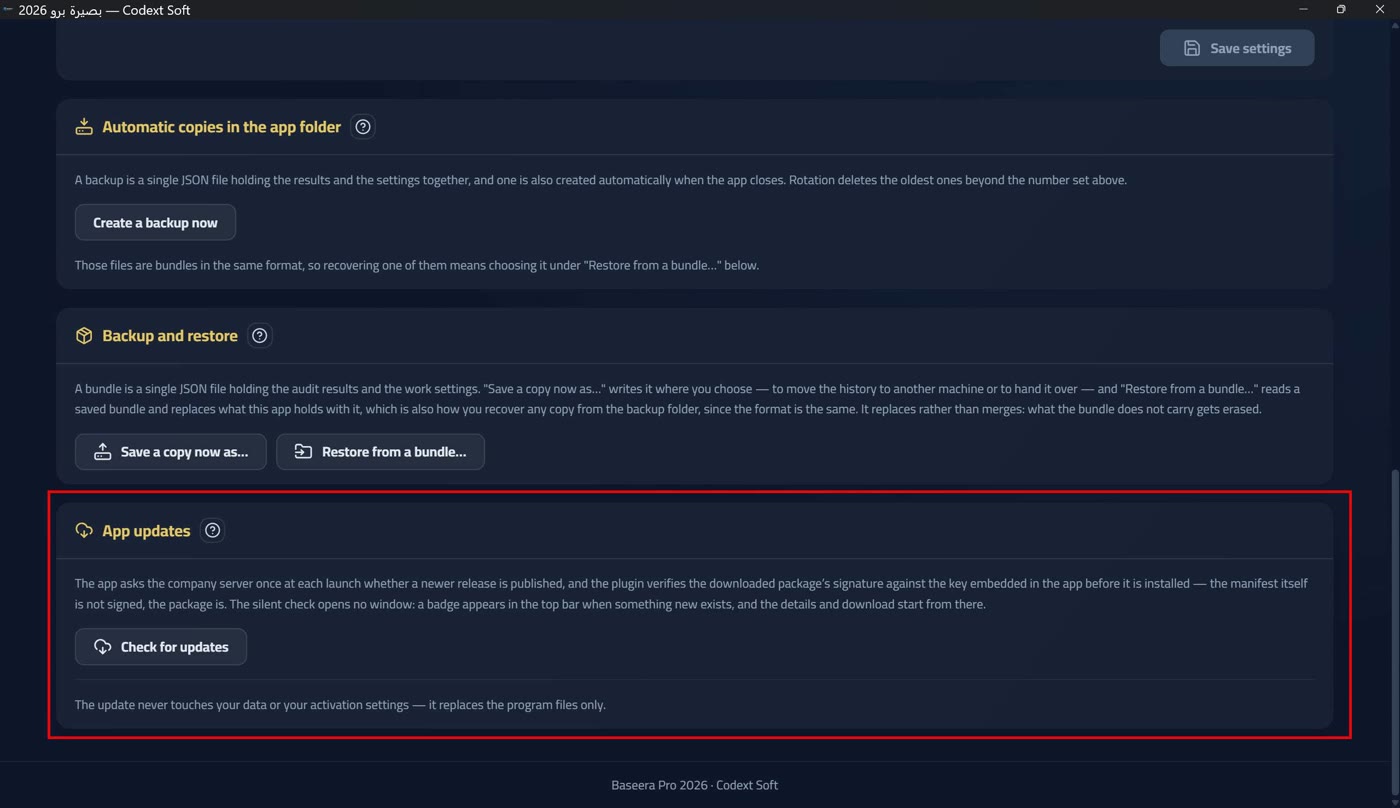
From the «check for updates» button in the app-updates section the outcome is stated explicitly in both cases: «you are on the latest version — nothing new right now» or «could not check for updates».
Downloading and installing — and the portable edition
During the download the app shows «downloading the installer…» with the notice «do not close the app while downloading. The download cannot be cancelled once started — closing cuts it mid-way», and displays «downloaded so far». If the server does not announce the file size: «the server did not announce the file size, so only what was downloaded is shown, without a percentage» — no invented percentage. Then «download complete — running the installer; the app will close»: running the installer is Windows' own behaviour, so the app closes and the installer does its work.
The portable edition is not updated from inside the app, and the notice explains the reason rather than merely forbidding: «your edition is portable, so it is not updated from inside the app: the installer writes a new installed edition into the Windows programs folder and leaves your portable file as it is, so you would open the old one and see no trace of what you downloaded. Download the new executable from the company site and replace yours with it — your data in the Data folder stays, because it lives outside the executable». Beside the notice, an «open the download page» button opens https://www.progixsoft.com/baseerapro/.
If the download or install fails, the badge turns to «installation failed» and the window shows «could not download or install the update» with «retry, or download the file from the company site» and a «retry» button.
Codext news: a declared source and named failures
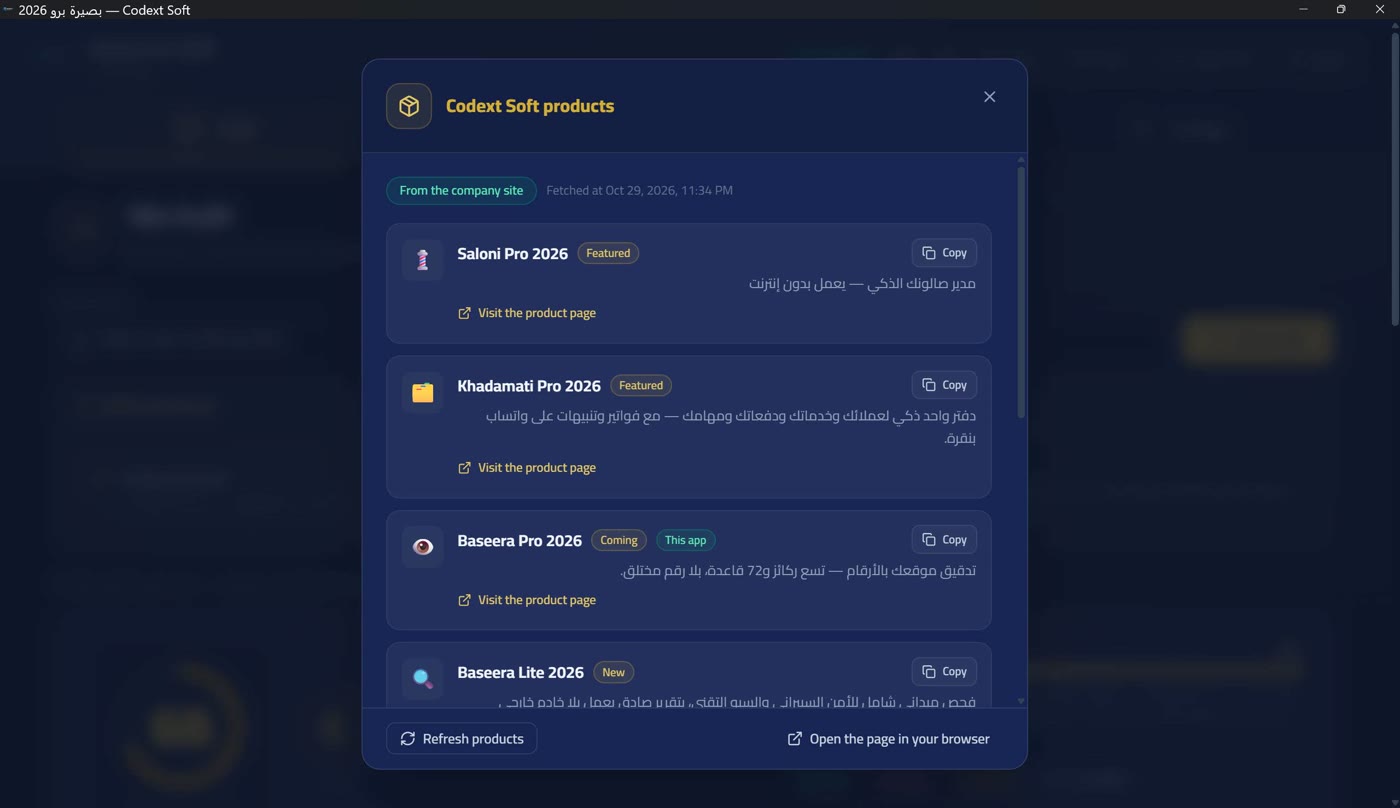
Two icons in the top bar without text — so navigation labels are not crowded out at a narrow width: a newspaper for Codext news, and a box for its products. Each one's tooltip is its name.
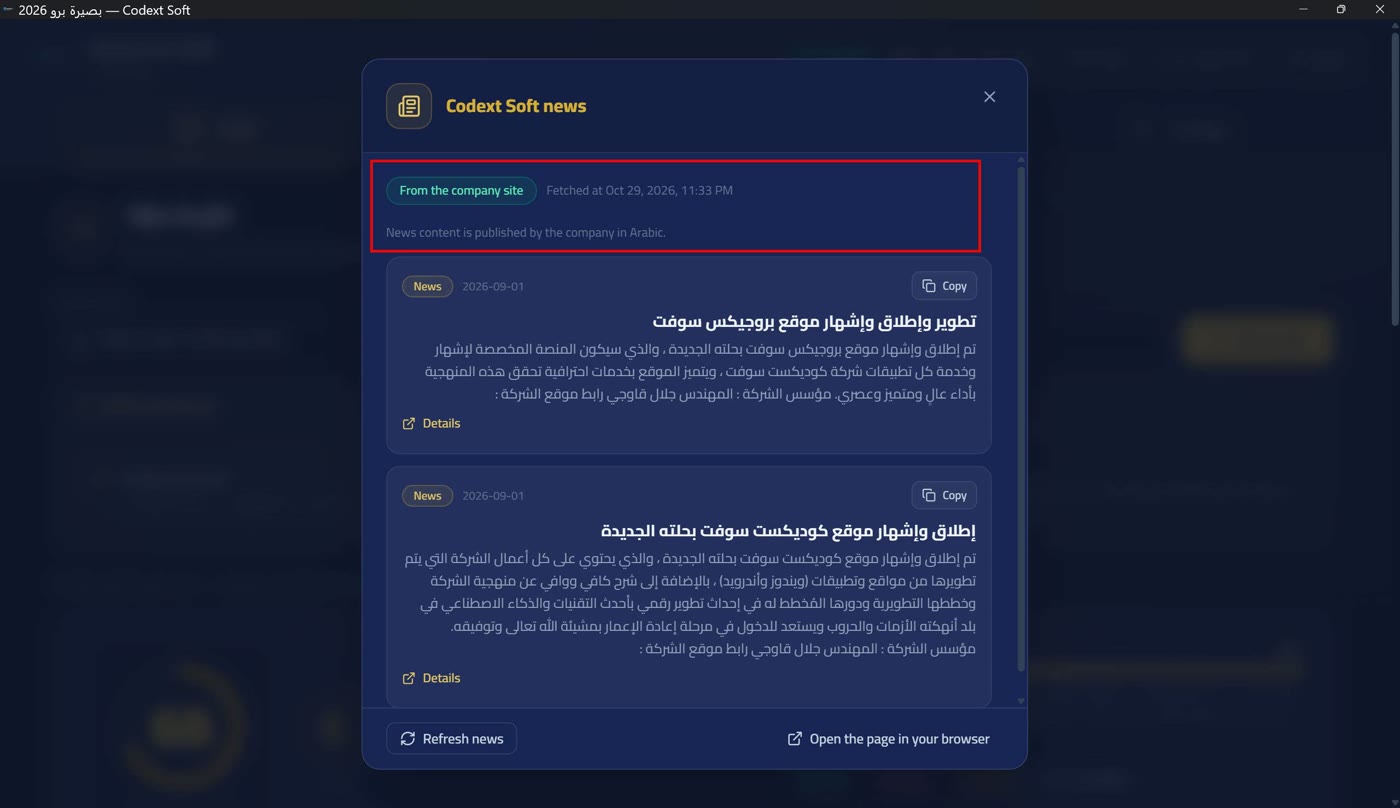
The news window shows published items with tags «update» / «offer» / «product» / «news», a «details» button per item, a «refresh news» button, a copy button «copy this item as plain text», and an «open the page in the browser» button. And one explicit note: «news content is published by the company in Arabic» — the channel is family-wide and is not translated.
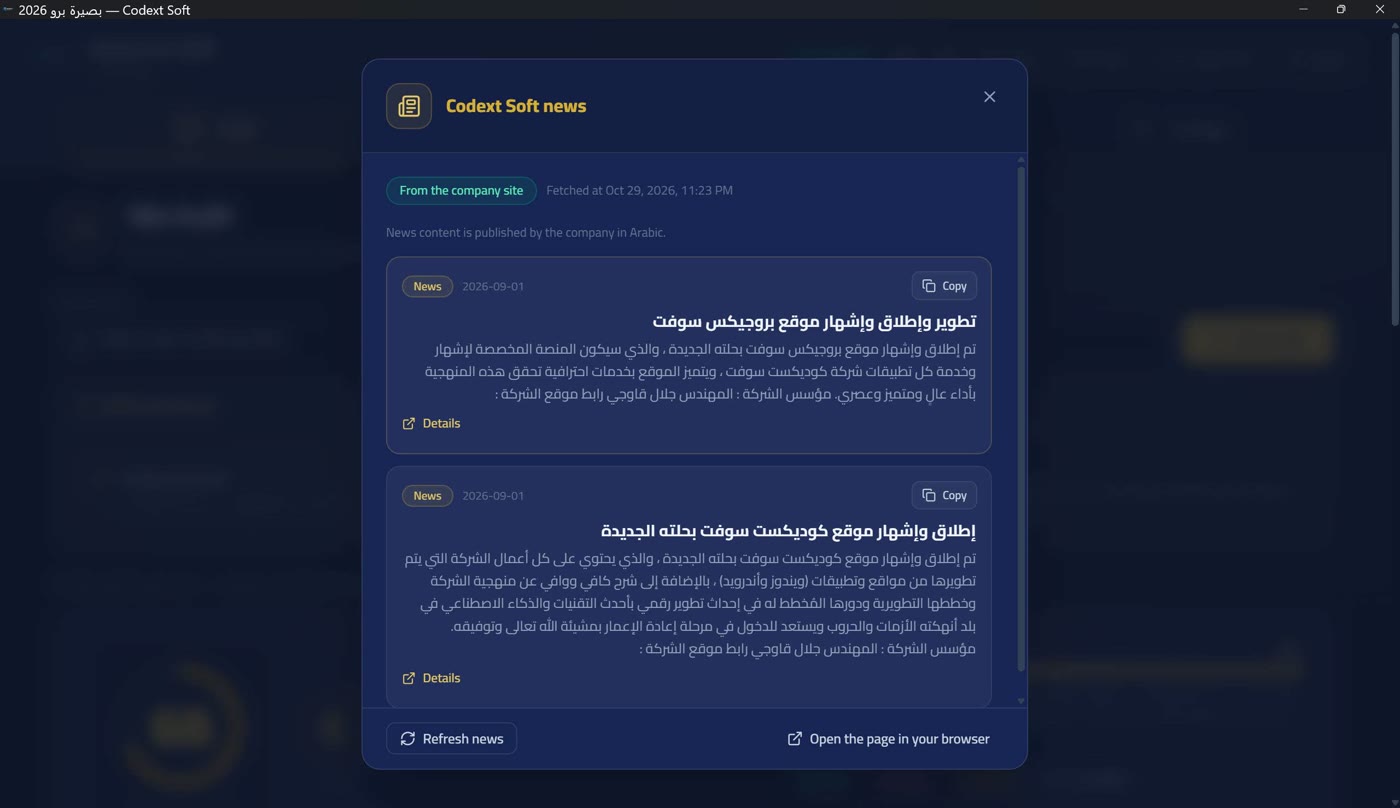
The source of what is shown is always declared: «from the company site» or «a copy saved on this device», with «fetched at» showing the fetch moment. The mechanism: a saved copy first, then one live attempt; and if the copy is older than six hours it is tagged «this copy is more than six hours old» — a tag, not a ban, because stale data declared stale is more useful than emptiness.
Failure is named, never dressed up as «no news»: if no valid response arrives: «could not reach the company site — no valid response arrived: a network outage, a timeout, or the server rejected the request». If a file arrives that does not match the contract: «a file arrived that does not match the contract — the site answered with content that could not be parsed as the published channel file, so nothing was shown from it instead of guessing», with «and no copy is saved on this device yet» underneath when that is true. But «no news published yet» means the company's published file is genuinely empty: «and that is the company's statement, not a fault on our side».
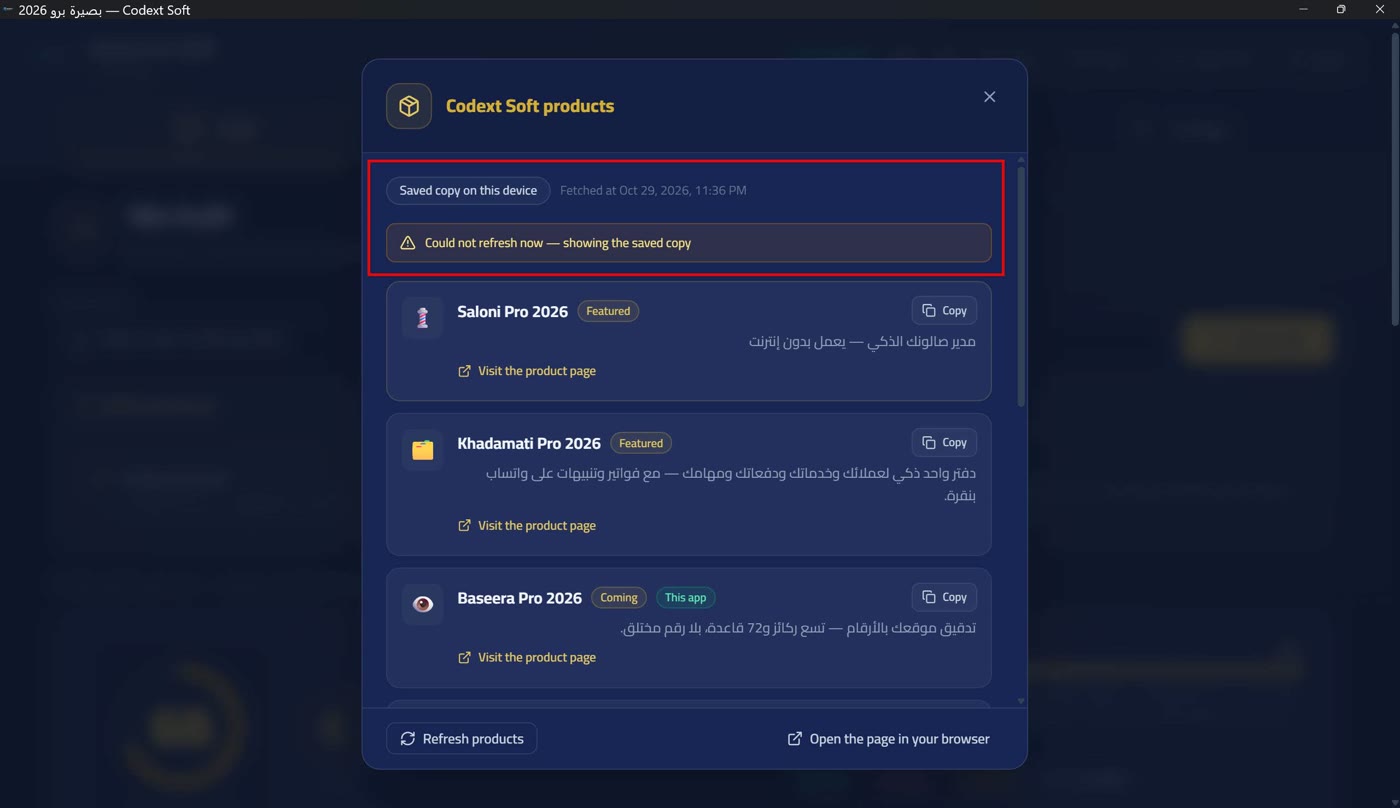
Codext products
The products window shows Codext products with badges «new» / «soon» / «featured», labels the current app «the current app», and gives each product a «visit the product page» button opening https://www.progixsoft.com/ourproducts/ and a copy button. The source and declared-failure rules of the news window apply here exactly the same — the two channels read two published files in the same way.