Getting started — boot, top bar and contact
What Baseera Pro 2026 is, your first six steps, the boot screen and the top bar, and the About window, help, closing and contact.
What Baseera Pro 2026 is and why
Baseera Pro 2026 is a desktop website-audit app from Codext Soft: you enter a URL, it politely crawls the site's pages, measures 9 pillars — Security, SEO, Speed & Performance, Responsive, Crawl & Links, Content, Infrastructure, Compliance and Accessibility — then scores each pillar and an overall grade from A+ to F.
What sets it apart from web-based checkers is that it never invents a number: every figure in the report is either actually measured from the site and tagged «measured», or tagged «estimated» with its reason, or «unavailable» — and an unavailable value is never replaced with zero. The tags in detail: Where each number comes from.
Auditing runs from the Rust layer on your machine: one request for the probe, polite crawl batches with a per-host delay, respect for robots.txt, and a circuit breaker that stops when refusals repeat. Your result ships as a report in five formats (Export in five formats and its locks), and every finding carries its cure and fix snippet (The fix snippet and the copy button).
Your data stays on your machine: history is a local SQLite database, backups are JSON files in the app folder, and there is no cloud account and no subscription — a saved result opens and exports offline (Local history and opening a saved result). The app is fully bilingual, and the exported report's language is a setting independent of the interface language (Preferences: three saved settings).
First setup — six steps
To start without fumbling, follow six steps: 1) Understand your tier from the top-bar badge — amber «demo» or green «licensed» — and hover to read how many full audits remain (Two tiers and a badge — no time trial). 2) Try the sample site first, from the «Before you start» card on the audit screen — a full audit with no internet and no quota (The embedded sample site). 3) Audit your site: enter the URL, press «Start audit», and watch the crawl panel until «crawl complete» (The audit screen and the URL).
4) Read the result top to bottom: the overall score, then coverage, then the pillars, then the findings with their fix snippets (The overall score and coverage). 5) Export the report in the format its reader needs: HTML for presenting, Markdown for editing, JSON for another program, SARIF for CI tools, and the agent summary for a developer working with an AI agent (Export in five formats and its locks). 6) Adjust what needs adjusting: exported-report language, backups kept, and maximum crawl pages (Preferences: three saved settings).
One tip before you enter client domains: the demo quota is 3 full audits per Windows user, and the embedded sample site never deducts from it — use the sample to learn and to present in front of a client, and save your full audits for real sites you actually want a report for.
Boot and the top bar
When the app opens, the splash screen shows the Baseera Pro 2026 logo and its tagline «Comprehensive website auditing — nine pillars, real measurement», with «click anywhere to continue» beneath. It closes by itself after about three seconds, or immediately on any click.
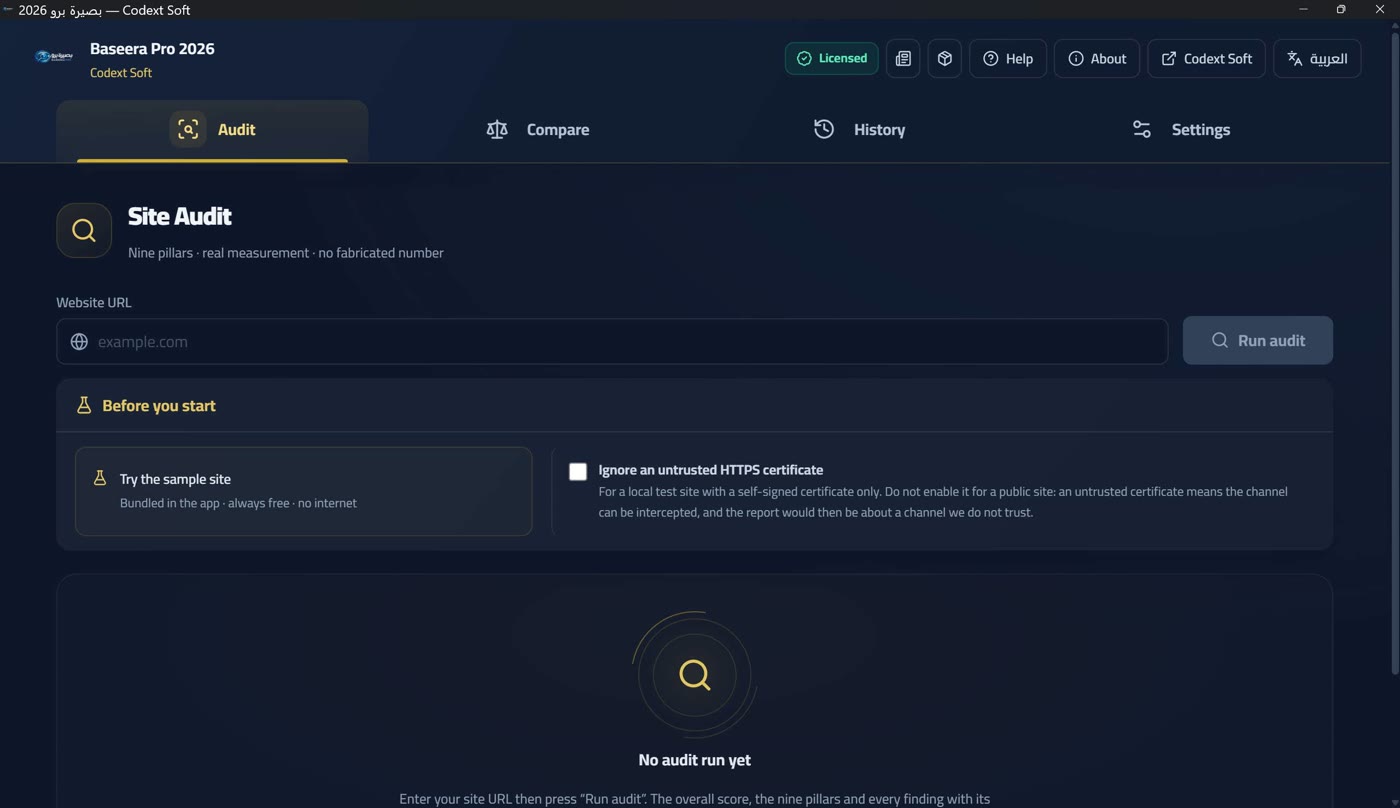
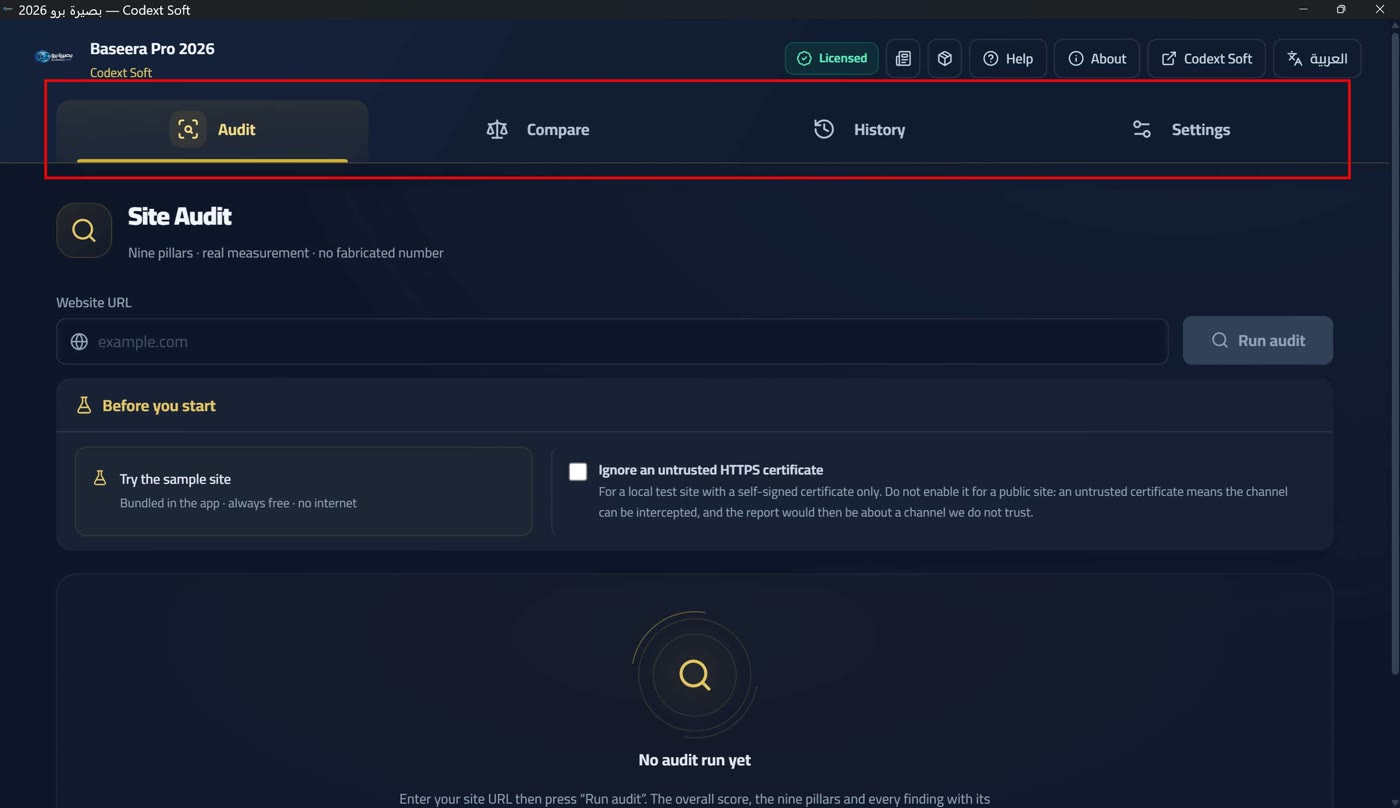
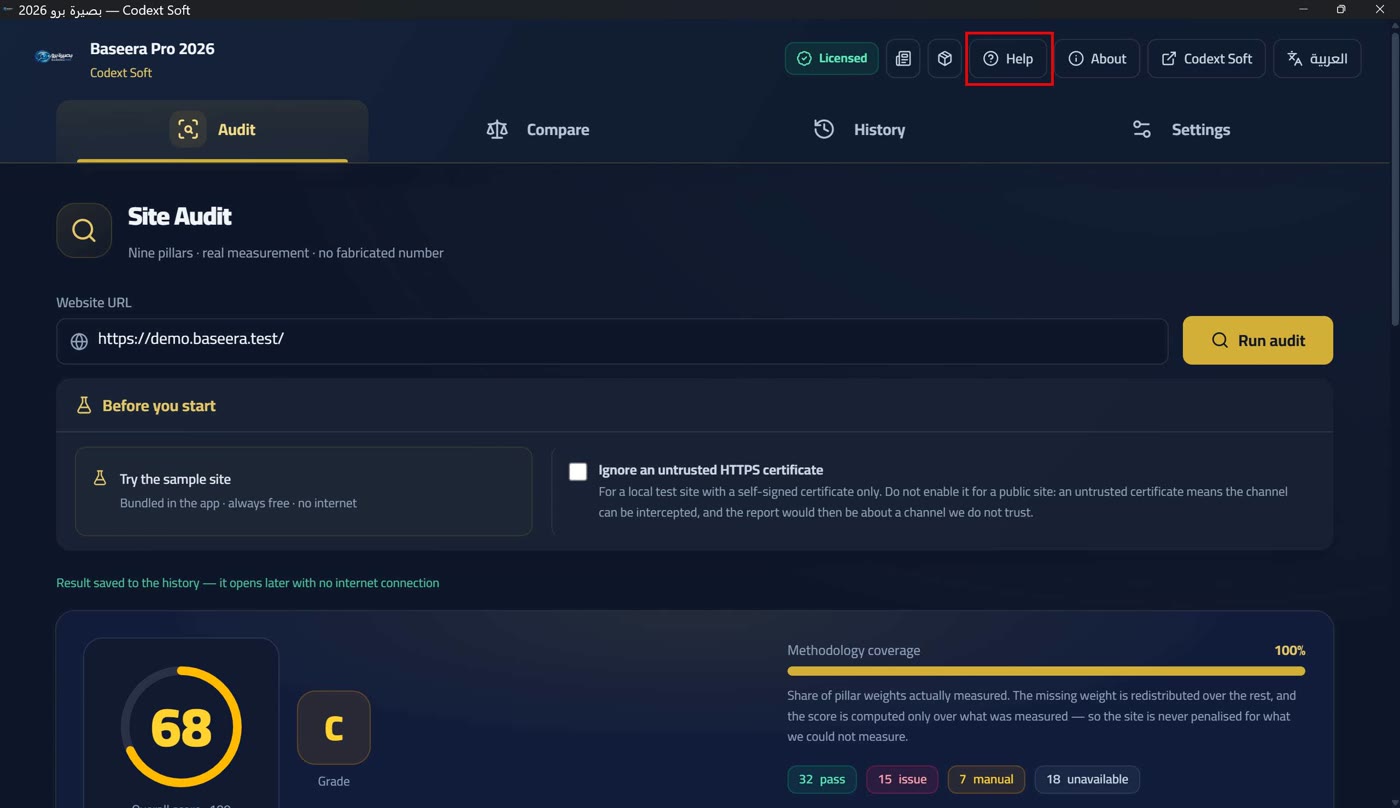
After the splash you land directly on the audit screen, the first of four. The top bar is fixed across all screens and carries — from the left in the English interface: the logo, the app name and the company name beneath it, then the four navigation buttons (Audit · Compare · History · Settings), then at the other end: the licence badge (Two tiers and a badge — no time trial), the update badge when something new exists (Automatic updates: a silent check and a badge), the company news and products icons (Codext news: a declared source and named failures), the «Help» button (How this help works), the «About» button (The «About» window and contact rows), the company-name button that opens its site, and the language switch last.
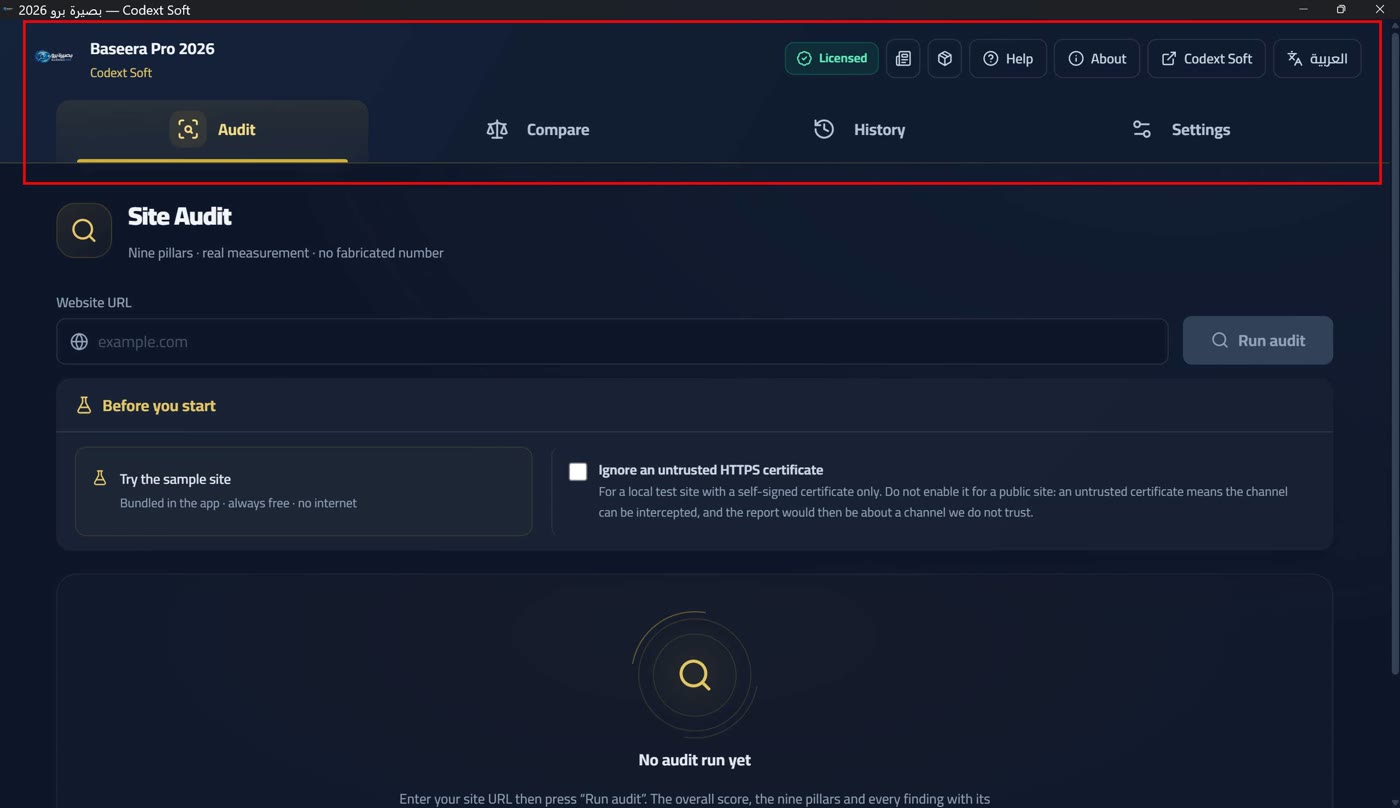
The bar's order is deliberate: state before action. The two badges (licence, then update) are state, not action, so they follow the logo; the actions — channels, help, about, the company link and language — come after. Language is last because it is an action taken once per session, while everything before it is needed while you stand in a screen.
Moving between the four screens is one click; the active screen is drawn with a translucent gold background and a gold ring, and button labels drop away on narrow widths leaving icons alone. The app is a single window with no router: no URL changes and there is no browser «back» button — navigation is state inside the app.
The language switch shows the other language's name: «English» in the Arabic interface, «العربية» in the English one. A single click flips the whole interface — texts, direction (rtl ↔ ltr) and bar order. The interface language is not saved between sessions: the app starts in Arabic at every boot, and whoever wants English presses the button once at the start of the session. The exported report's language, however, is an independent saved setting (Preferences: three saved settings), and the help language follows the interface language automatically (How this help works).
The «About» window and contact rows
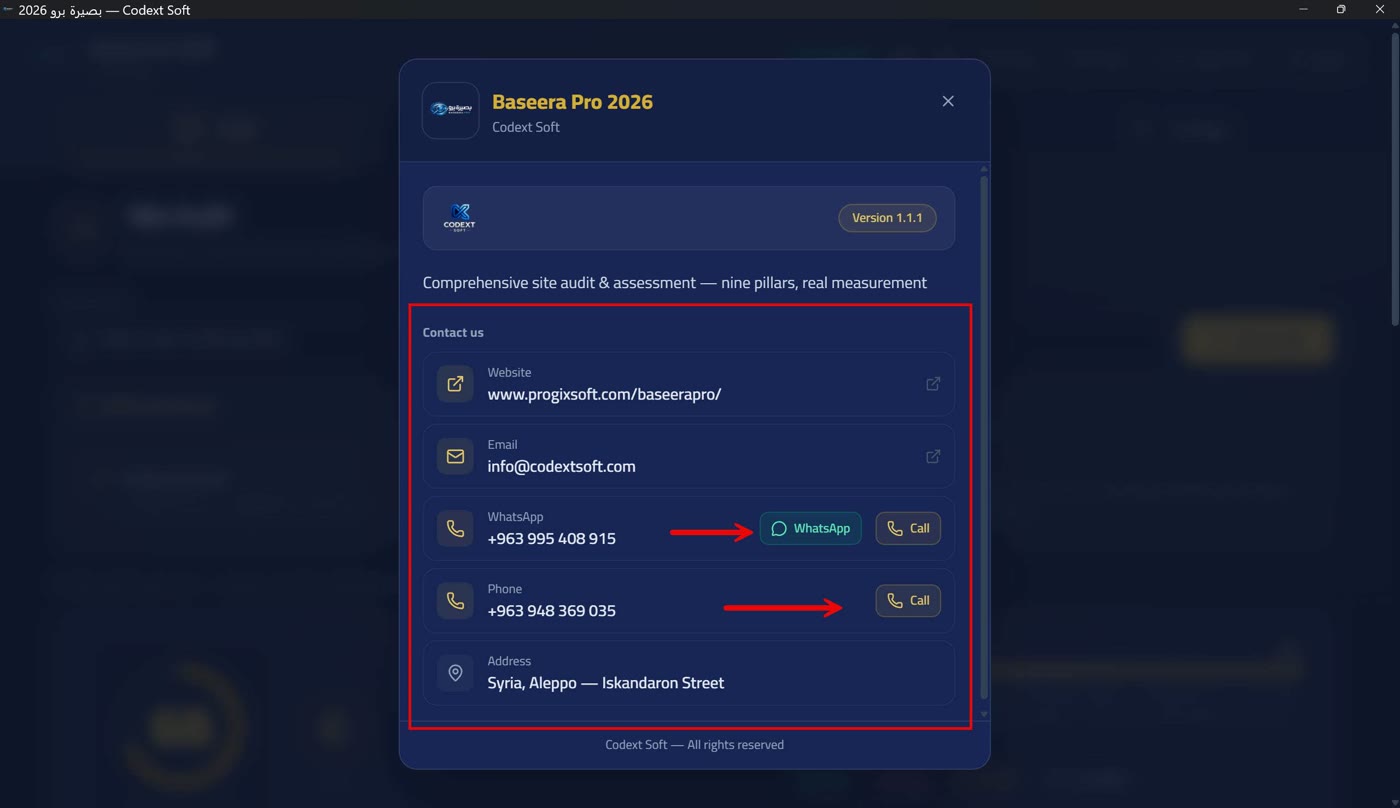
The «About» window opens from its button in the top bar and holds: the app name and logo, the «Version» with its number, a «Contact us» block of clickable rows, and the copyright line.
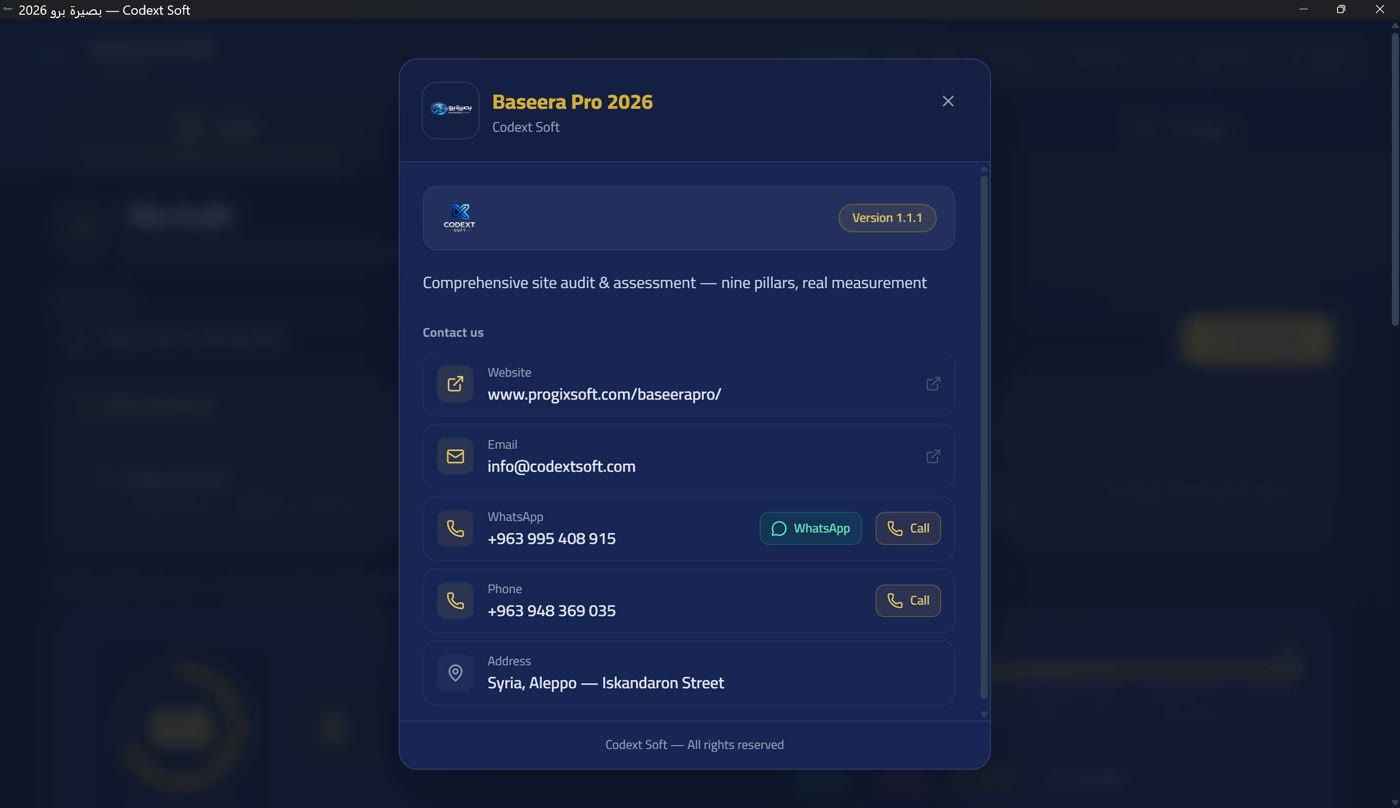
The contact rows — each row by its capability, not one label for all: the site https://www.progixsoft.com/baseerapro/, email info@codextsoft.com, WhatsApp on the first number +963 995 408 915 opening a chat, and two phone rows with a «call» button: the first +963 995 408 915 has WhatsApp, the second +963 948 369 035 has no WhatsApp — which is why no WhatsApp button is drawn for it at all; a row labelled «WhatsApp» that opens a chat with a number that has no chat is a failed customer experience, not a missing feature. The address «Syria, Aleppo — Iskandaron Street» is plain text, not clickable.
Every external link opens through the Rust command open_external in the system app that fits it — never inside the app window.
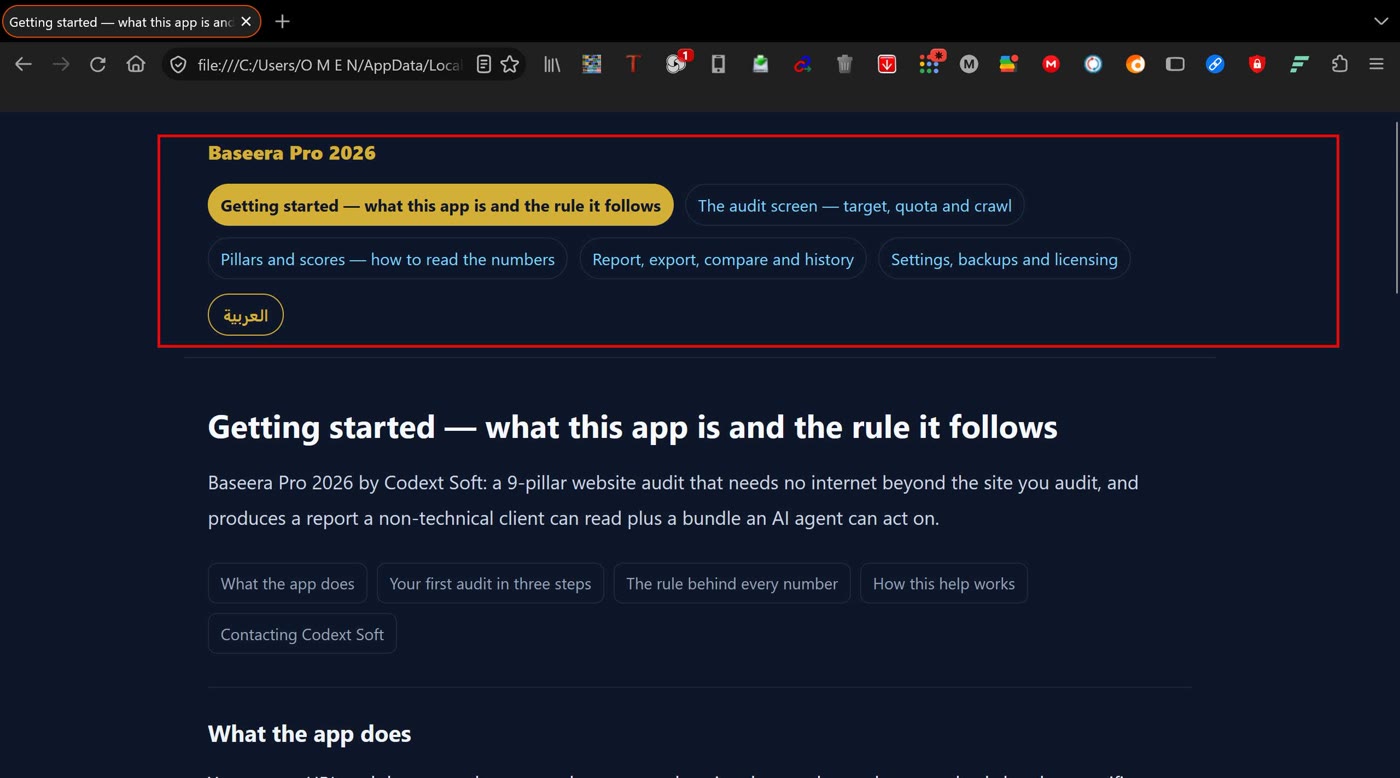
How this help works
The «Help» button (the question mark) in the top bar opens the help page matching the screen you are standing on: from Audit the «Auditing» page, from Compare the «Report» page at the comparison section, from History the «Report» page at the history section, and from Settings the «Settings» page. Beside it, a «help for this section» button next to every section title inside a screen opens the page at that exact section.
The pages are embedded in the app and open in the system browser: they are written to the cache folder and opened as local files — no local server and no open port — and they work offline in both the portable and the installed build. The notice prints the URL that was opened instead of a vague «done», because «success» without evidence is what makes a broken button look working. The language switch sits in the header of the help pages, not the footer: whoever lands on a page in a language they cannot read sees the way to their own language at the top of the screen, not at the bottom.
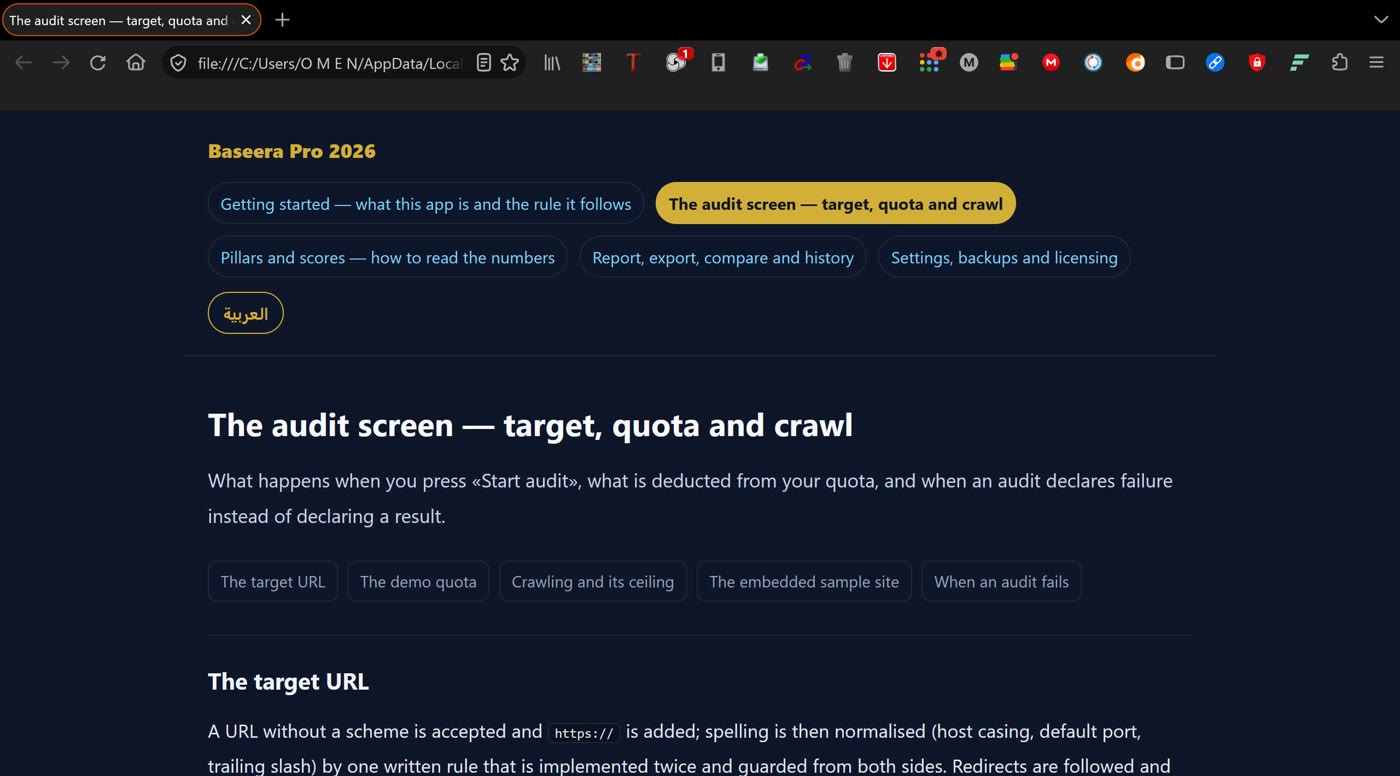
The page language follows the interface language automatically: from an Arabic interface the Arabic page opens, from an English one the English page — no second switch needed. If opening fails, the reason is printed exactly as it came from the core. In browser mode (the development build) help does not open, and the message is honest: «Help pages are embedded in the desktop app; this build runs in a browser, so there is no file to open».
Closing the app and the backup
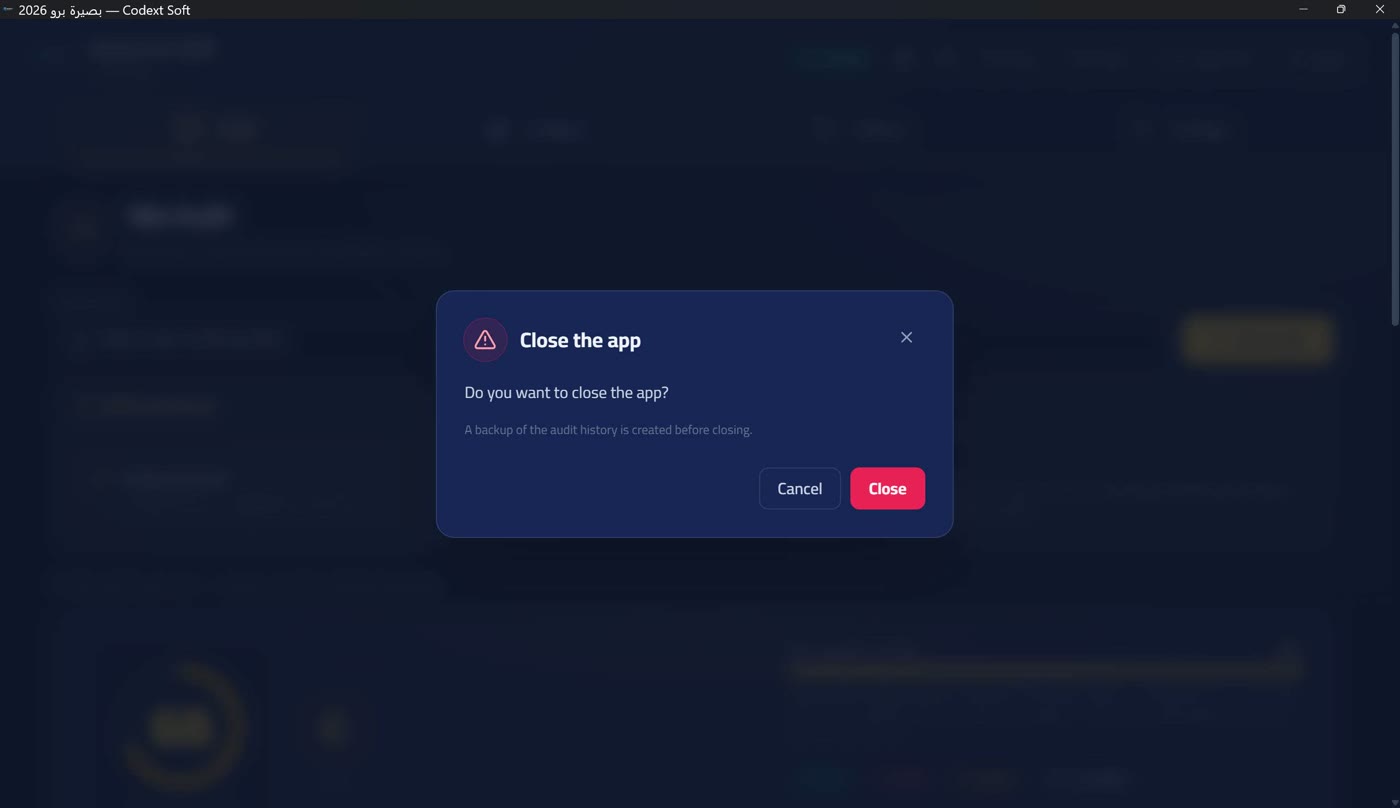
When you close the app the «Close app» dialog appears: «Do you want to close the app?» with the line «A backup of the audit history is created before closing» (Automatic backups in the app folder). If the backup fails, closing is not blocked — instead it says: «Could not create the backup. Closing is still possible, but it will be without a copy», with a «close without a copy» button.
Contact and support
Codext Soft — كوديكست سوفت. Site: https://www.progixsoft.com/baseerapro/ · Products page: https://www.progixsoft.com/ourproducts/ · Email: info@codextsoft.com · WhatsApp: +963 995 408 915 · Phone: +963 995 408 915 and +963 948 369 035 (the second is call-only, no WhatsApp) · Address: Syria, Aleppo — Iskandaron Street.
And the fastest route to support is the activation window itself: the «copy the request text» button builds a letter carrying your device code, the app version and the quota state; send it by WhatsApp or email and we receive everything needed to diagnose your case from the very first message (Requesting an activation code).